
 עברית
עברית
For desktop and laptop call tracking, the setup described here uses a Google forwarding number in place of the website's telephone number. This guide covers tracking calls placed through a separate dialler rather than by clicking a button, using Google Tag Manager.
Step 1: Create a conversion in Google Ads
- Sign in to Google Ads, go to Tools and settings > Conversions.
- Click "+" (add a conversion) and select "Phone calls".
- Three options are shown. Select "Calls to a phone number on your website".
- Name the conversion, for example "Phone calls: DESKTOP".
- In the field "Value", if no monetary value is needed, select "Don't use a value for this conversion action".
- In the field "Count", select "One", so the action is counted once in the setup described, even if the user calls more than once.
- Change the "Attribution model" to "Time decay", to credit the touchpoints in the conversion journey as described here.
- Click "Save and continue".
After saving, Google Ads asks how to install the conversion code. Select "Use Google Tag Manager".
Step 2: Create the conversion tag in Google Tag Manager
- Sign in to Google Tag Manager and go to Tags.
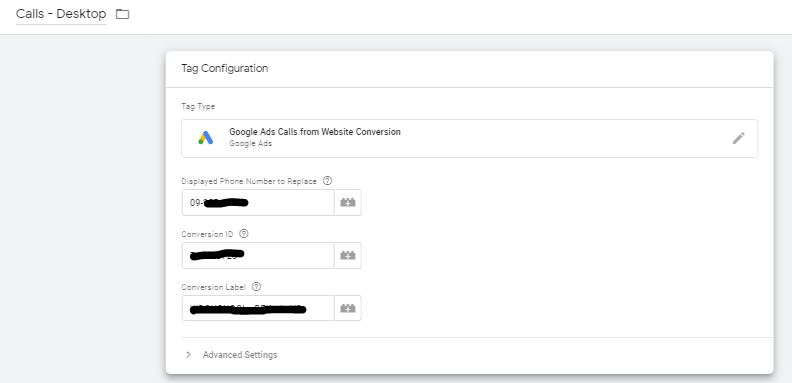
- Create a new tag and click Tag Configuration.
- Select "Google Ads Calls from Website Conversion".
- In the field Displayed Phone Number to Replace, enter the telephone number exactly as it appears on your website, including hyphens, for example:
09-777-7777). - Copy the Conversion ID and the Conversion Label from Google Ads and paste them into the relevant fields.
- Save the tag.
Step 3: Create a conversion trigger
- In the menu Triggering, click Create a new trigger.
- Select "All Pages", so the number can be replaced on each website visit.
- Save the trigger.
Step 4: Add a Conversion Linker for tracking
- Create a new tag and select "Conversion Linker".
- Under Triggering, select "All Pages".
- Click "Save".
Step 5: Test and publish
- Click "Preview", and test using Debug Mode in GTM to check that the call-conversion tracking works correctly.
- If everything works correctly, click "Submit" to publish the changes.
Desktop phone-call conversion tracking is configured. You can now use the configured website call-related tracking to inform campaign optimisation.