
 עברית
עברית
Phone-call tracking supports Google Ads campaign analysis by measuring call-related actions from ads or your website. This guide explains how to configure "Phone calls"for telephone-link clicks on your website from a mobile browser, using Google Tag Manager.
Step 1: Create a conversion in Google Ads
- Sign in to Google Ads and go to Tools and settings > Conversions.
- Click "+" (add a conversion) and select "Phone calls".
- Three options are shown. Select "Clicks on your number on your mobile website".
- Name the conversion, for example "Click2Call".
- In the field "Value", if you do not need to assign a monetary value, select "Don't use a value for this conversion action".
- In the field "Count", select "One", so the action is counted once in the setup described, even if the user calls more than once.
- Change the "Attribution model" to "Time decay", to credit the touchpoints in the conversion journey as described here.
- Click "Save and continue".
After saving, Google Ads asks how to install the conversion code. Select "Use Google Tag Manager".
Step 2: Create a variable in Google Tag Manager
Before creating the tag, configure a variable for telephone-link clicks:
- Sign in to Google Tag Manager, in the left-hand menu click Variables.
- Click "Configure", then in the window that opens, enable V for all options under Clicks.
- Close the window and click "New" to create a variable.
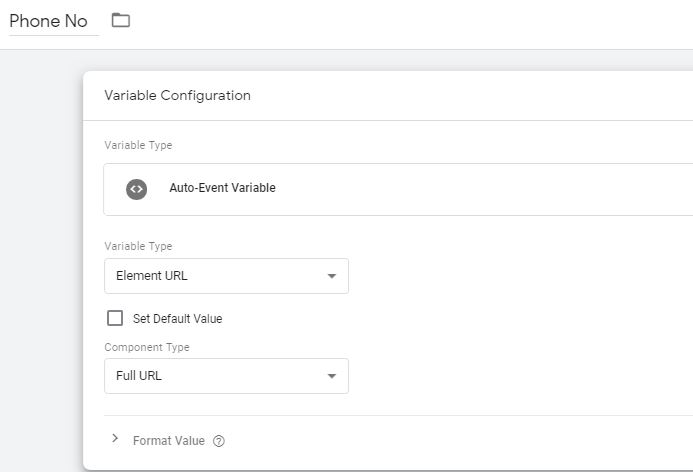
- Name the variable "Phone No".
- Under Variable Type, select "Auto-Event Variable".
- In the field Variable Type, select "Element URL".
- In the field Component Type, leave "Full URL" as the default.
- Save the variable.
Step 3: Create a conversion tag in Google Tag Manager
- Open the menu Tags and create a new tag.
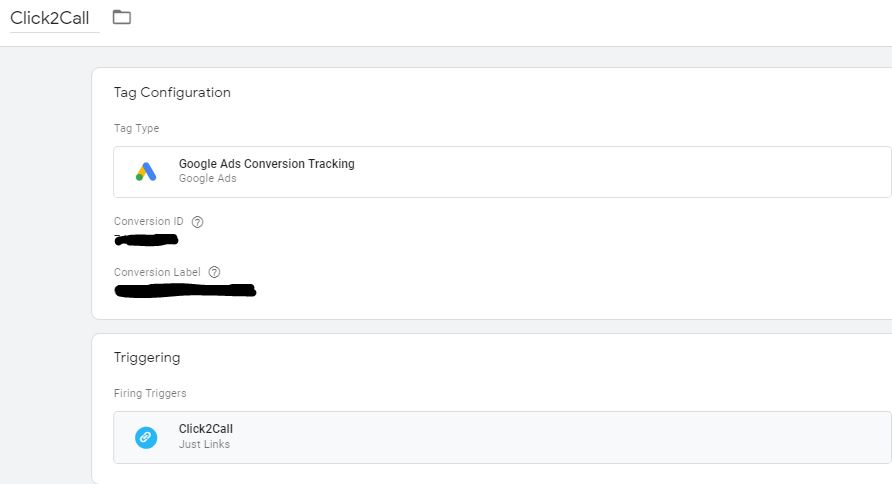
- Under Tag Configuration, select "Google Ads Conversion Tracking".
- Copy the Conversion ID and the Conversion Label from Google Ads and paste them into the relevant fields.
Step 4: Create a telephone-link click trigger
- Under Triggering, click Create a new trigger.
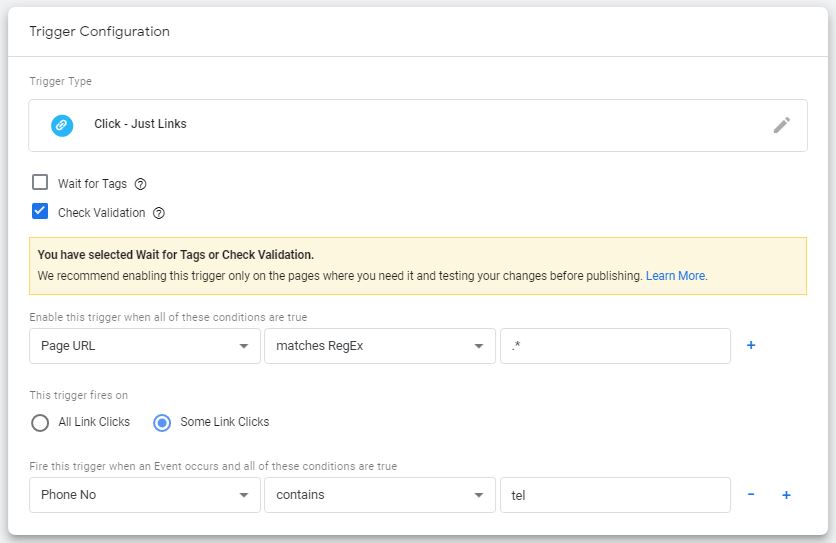
- Select "Just Links", because this tracks a link click.
- Enable V on Check Validation.
- In the field Page URL, select "Matches RegEx", and enter
.*to include every page on the website. - Select "Some Link Clicks".
- In the first field, select "Phone No" (the variable created earlier).
- In the second field, select "Contains".
- In the third field, enter "tel:", because telephone links that open a dialler use this prefix.
- Save the trigger.
Step 5: Add a Conversion Linker for tracking
- Create a new tag and select "Conversion Linker".
- Under Triggering, select "All Pages".
- Click "Save".
Step 6: Test and publish
- Click "Preview", and test using Debug Mode in GTM to check that the conversion fires when the telephone link is clicked.
- If everything works correctly, click "Submit" to publish the changes.
Telephone-link conversion tracking is configured. You can now use the configured website call-related tracking to inform campaign optimisation.