 עברית
עברית
Conversion tracking helps assess Google Ads campaign performance by showing which keywords, ads and pages lead to useful actions. This guide explains how to configure a "Website" conversion for visitors who submit their details and reach a thank-you page, using Google Tag Manager.
Step 1: Create a conversion in Google Ads
- Sign in to Google Ads and go to Tools and settings > Conversions.
- Click "+" (add a conversion) and select "Website".
- Under "Category", select "Lead" or "Sign-up".
- Name the conversion, for example "Website enquiry".
- In the field "Value", if this is not an ecommerce website, select "Don't use a value for this conversion action".
- In the field "Count", select "One", to avoid counting the same user more than once as described in this setup.
- Change the "Attribution model" to "Time decay", to credit the touchpoints in the conversion journey as described here.
- Click "Save and continue".
After saving, Google Ads asks how you want to install the conversion code. Select "Use Google Tag Manager".
Step 2: Create a conversion tag in Google Tag Manager
- Sign in to Google Tag Manager and click "New Tag".
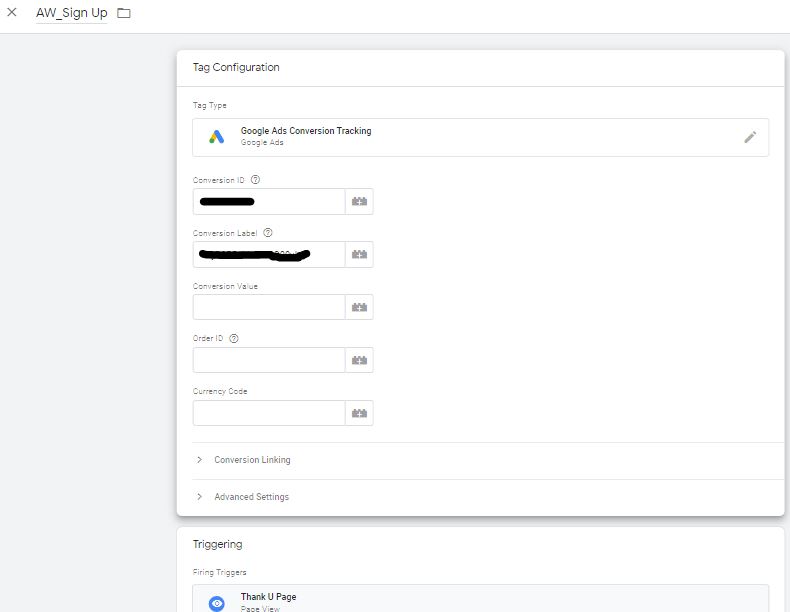
- Under "Tag Configuration", select "Google Ads Conversion Tracking".
- Copy the Conversion ID and the Conversion Label from Google Ads and paste them into the relevant fields.
Step 3: Create a thank-you page trigger
- Under "Triggering", click Add a new trigger.
- Select "Page View", because this setup tracks thank-you page loads.
- The trigger is set by default to "All Page Views" ; change it to "Some Page Views".
- In the first field, select "Page URL", in the second select "Contains", and in the third enter the thank-you page URL, for example:
thank-you). - Click "Save".
Step 4: Add a Conversion Linker for tracking
- Create a new tag and select "Conversion Linker".
- Under "Triggering", select "All Pages".
- Click "Save".
Step 5: Test and publish
- Click "Preview" and use GTM debug mode to check that the conversion fires when the thank-you page loads.
- If everything works correctly, click "Submit" to publish the changes.
The conversion is configured. Google Ads can now record the website actions configured in this setup and use them to inform campaign optimisation.