 עברית
עברית
Google Ads conversion tracking measures the actions people take on your website after clicking an ad. Google Tag Manager helps simplify the setup and management process.
Step 1: Set up a conversion in Google Ads
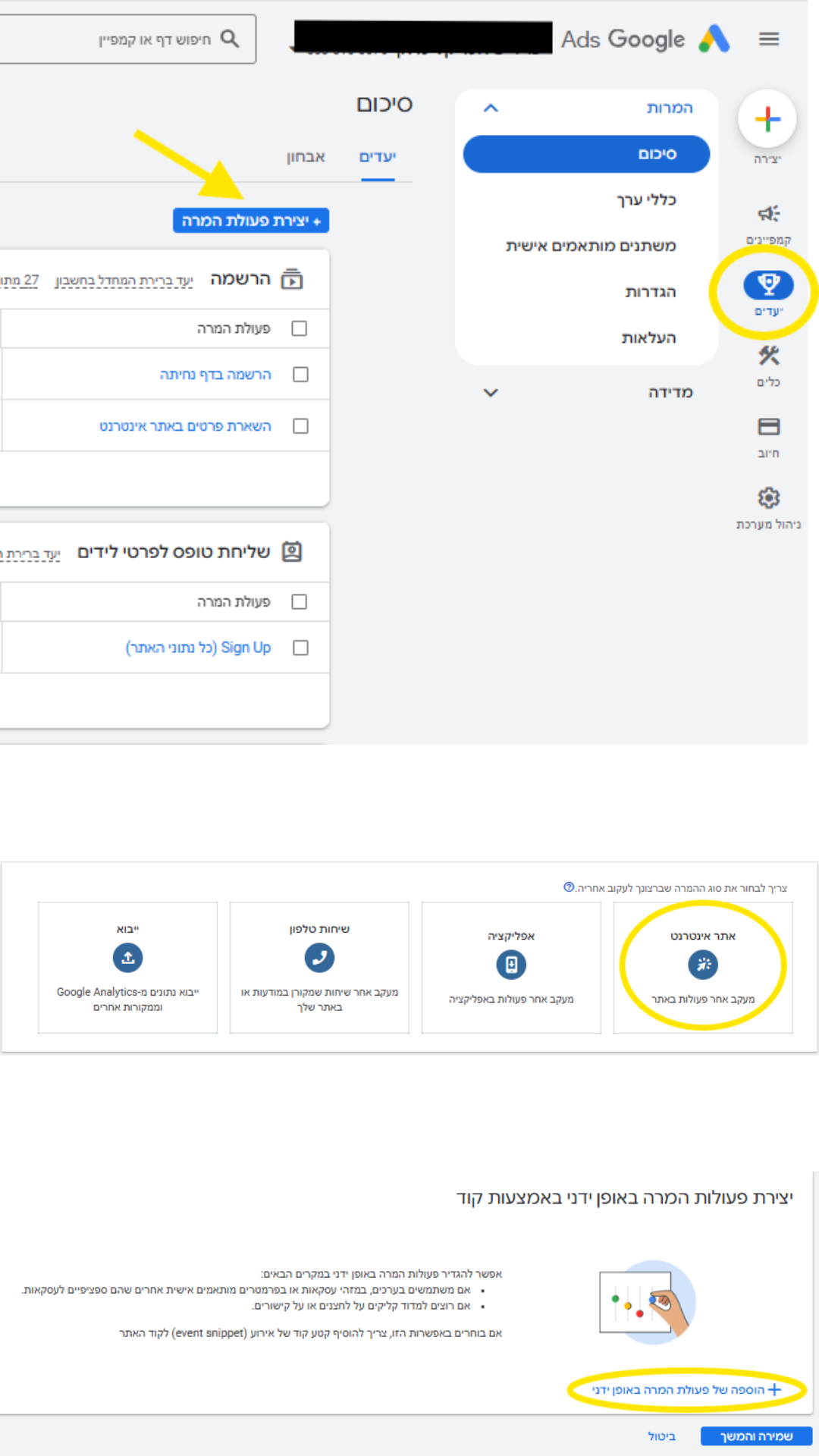
- Sign in to your Google Ads account:
- In the sidebar, click Tools & Settings > Conversions.
- Create a new conversion:
- Click the "+" button and choose the conversion type, such as a purchase or form submission.
- Enter the conversion name, tracking method, conversion value if applicable, and other settings.
- Choose the installation method:
- Select Use Google Tag Manager to get the tracking details.
Step 2: Get the conversion-tracking details
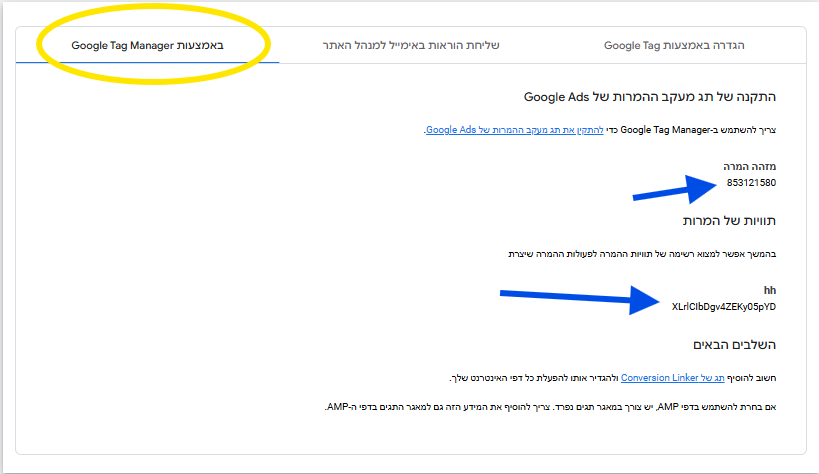
After setting up the conversion, Google Ads provides the following details:
- Conversion ID (conversion ID).
- Conversion Label (conversion label).
- Sign in to-Google Tag Manager:
- Open the container for your website.
- Create a new tag:
- Click Tags in the sidebar, then click "New".
- Name the tag, for example "Google Ads Conversion Tag".
- Choose the tag type:
- Click "Tag Configuration" and select Google Ads Conversion Tracking.
- Enter the tracking details:
- Enter the Conversion ID and Conversion Label provided by Google Ads.
- Set up a trigger:
- Click "Triggering" and choose a suitable trigger, such as a thank-you page visit or a click that completes an action.
Step 4: Test the tag
- Open Preview mode in GTM:
- Click "Preview" and test your website.
- Make sure the tag fires only when intended, for example after a conversion is completed.
- Use Google Tag Assistant:
- Use this tool to check that the tag fires and sends data to Google Ads.
Step 5: Publish the tag
- Return to GTM:
- Click "Submit" to publish the changes.
- Check Google Ads:
- Open your Google Ads account and check that conversion data appears correctly in the reports.