
 עברית
עברית
Google Tag Manager (GTM) helps manage tags without requiring advanced coding knowledge. This guide explains how to create an account and get started.
Step 1: Open Google Tag Manager
Open Google Tag Manager:
- Visit: Google Tag Manager.
- If you are not signed in, sign in with your Google account.
Step 2: Create an account
- Click "Create Account":
- This button appears on the welcome screen if you have no existing accounts.
- Enter the account details:
- Account Name (Account name):
- Enter a name that describes your business or organisation, such as "My Business".
- One GTM account can contain multiple websites or apps.
- Country (Country):
- Select the country where your business operates.
- Account Name (Account name):
- Data-sharing settings:
- Select or clear the options for sharing account data with Google to improve its systems.
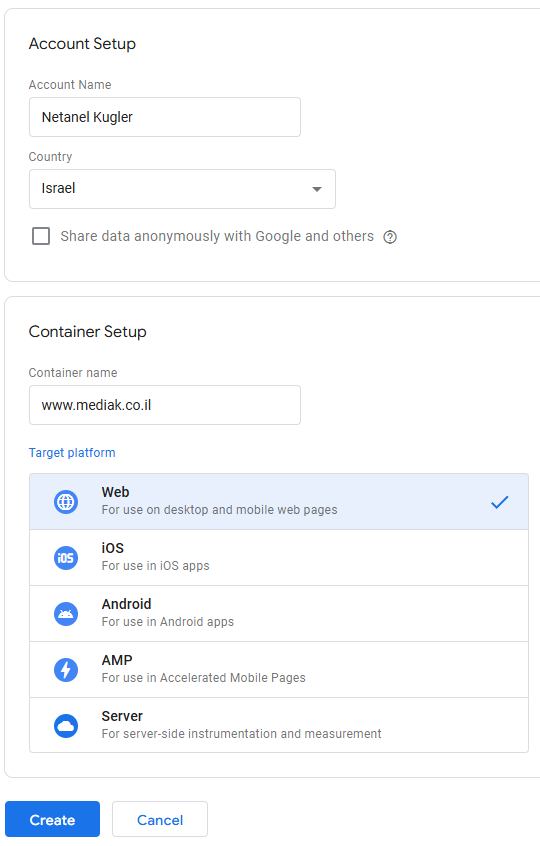
Step 3: Create a container
A container stores your tags, triggers and variables.
Name the container:
- Use the name of the website or app, for example "MyWebsite.com".
Choose a platform:
- Available options:
- Web (website)
- iOS
- Android
- AMP (Accelerated Mobile Pages)
- For most website setups, choose "Web".
- Available options:
Click "Create":
- Read and accept the Terms of Service.
Step 4: Get the installation code
To run GTM on your website, add the installation code provided.
Copy the code snippets:
- There are two parts:
- Head snippet:
- Paste it immediately after the
<head>tag on your website.
- Paste it immediately after the
- Body snippet:
- Paste it immediately after the
<body>tag on your website.
- Paste it immediately after the
- Head snippet:
- There are two parts:
Add the code to your website:
- If you do not have access to the website files, give the code to your developer or website administrator.
For a website built withWordPress
Use plugins such as Google Tag Manager for WordPress or Insert Headers and Footers to add the snippets to the website's head and body without manually editing the site code.
After installing the WordPress plugin described here, go to Settings > General and find the "Google Tag Manager" field.
Enter the GTM ID from the supplied code.
For a website built with Wix
In Wix, the setup described here uses Settings > Custom Code in the dashboard. Add the GTM snippets to the head and body sections, then save.
For a website built with Shopify
For Shopify, you can use apps such as Google Tag Manager Suite or Easy Tag from the Shopify App Store. Paste the container ID into the app and enable tracking.
Step 5: Test and verify the installation
Check that the code works:
- Use Google Tag Manager Preview mode to debug the installation.
- Visit your website and check that the tags work as intended.
Use Google Tag Assistant:
- Download the Chrome extension (Tag Assistant).
- Use it to check that the tags are installed and work correctly.
- After adding the code, return to Google Tag Manager and click Preview to check the installation.