
 עברית
עברית
Google Tag Manager (GTM) manages tags and website events without requiring a developer for every change. One of its most common triggers is the Page View trigger, which fires tags when a user visits a specified page. It supports website traffic analysis, landing-page monitoring and conversion-funnel tracking. This guide explains how to configure it for your website.
Step 1: Open GTM and create a trigger
Sign in toGoogle Tag Manager.
- Select the container for the website where you want to create the trigger.
- Click "Triggers" in the navigation menu.
- Click "New" to create a new trigger.
Step 2: Choose the trigger type
- Click the trigger configuration box and select "Page View" (page view).
- Select "Some Page Views" to fire the trigger only on selected pages, or "All Page Views" for every page.
Step 3: Set conditions where needed
If you selected "Some Page Views", you can add conditions such as:
- Specific pages only (URL contains
/thank-you, for example). - Visitors from specific sources (Referrer contains
facebook.com).
Step 4: Save the trigger
- Name the trigger, for example "All page views" or "Thank-you page views".
- Click "Save".
Step 5: Create a tracking tag, such as Google Analytics or Facebook Pixel
- Open "Tags" and click "New".
- Choose the tag type, for example:
- Google Analytics: GA4 Event to send data to GA4.
- Facebook Pixel – Page View Event to track views with Facebook Pixel.
- Under Triggering, select the trigger you created in the previous step.
- Click "Save".
Step 6: Test and publish
- Click "Preview" to check that the trigger works correctly.
- If everything works correctly, click "Submit" and then "Publish" to publish the changes.
The trigger is now active and will fire the chosen tag when its conditions are met.
Step 3: Add a trigger
Click "Triggering":
- Click "Add Trigger" and select All Pages (to track every page) or a custom trigger that meets your needs.
Save the tag:
- Click Save after adding the trigger.
Step 4: Test the pixel
Preview mode in GTM:
- Click "Preview" in GTM to test the pixel.
- Visit your website and check that the tag fires on the intended pages.
Check with Meta Pixel Helper:
- Install the extension Meta Pixel Helper for Chrome.
- Visit your website and check that the extension detects the pixel and PageView events.
Step 5: Publish the tag
Publish the changes:
- Return to GTM and click Submit to publish the tag.
Name the version:
- For example, "Meta Pixel Base Tag Added".
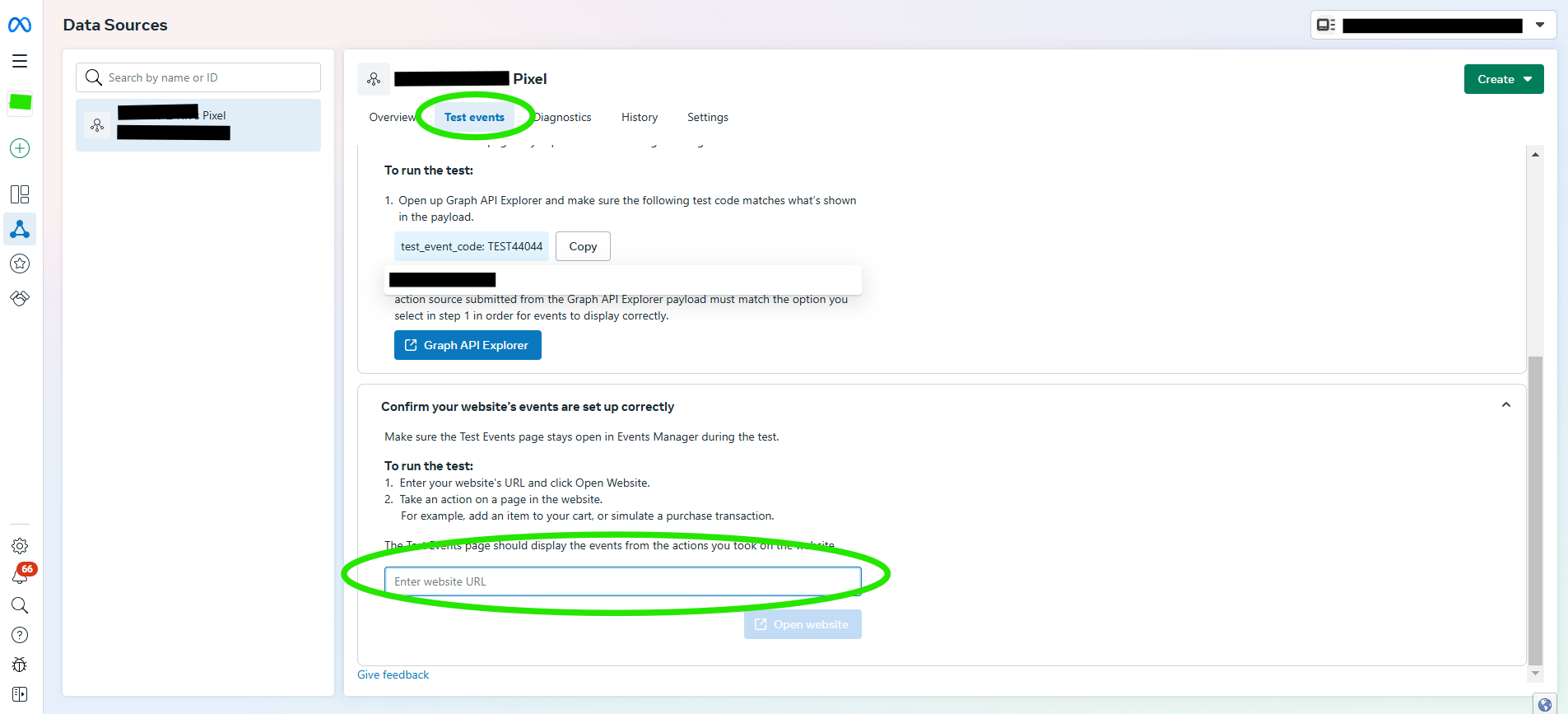
Step 6: Check Meta Events Manager
Sign in to Meta Events Manager
- Open your account in Meta Events Manager.
Select your pixel
- In the Pixels menu, select the pixel you want to check.
Open the "Test Events" tab
- Enter the URL of the website where you installed the pixel, then click Open Website.
Check that events are recorded
- After opening the website, return to Events Manager and look for PageView or other events you configured
Step 7: Check Meta Pixel Helper
Install Meta Pixel Helper
- Download Meta Pixel Helper for Chrome.
Check your website
- Visit the website where you installed the pixel.
- Click the extension icon in your browser and check that the pixel fires correctly.
Check for errors
- If the pixel works, you will see its ID and the events that fired, for example: PageView).
- If errors appear, check the Pixel ID and the tag settings in GTM.