
 עברית
עברית
Meta Pixel, formerly Facebook Pixel, tracks website activity, measures conversions and supports Meta Ads campaigns. This guide explains how to create a Meta Pixel tag with Google Tag Manager (GTM).
This guide is based on the Meta Events Manager instructions for connecting Google Tag Manager and Meta Pixel. It covers creating the tag, adding the correct ID and testing the installation.
Step 1: Set up the pixel in Meta
Sign in to Meta Events Manager:
- Go to Meta Events Manager and sign in to your account.
Create a pixel if you do not have one:
- Click Add Events > Data Sources > Create
- Name the pixel and, optionally, enter a website URL.
Find the Pixel ID:
- If you already have a pixel, select it from the list.
- Copy the Pixel ID shown on the page; you will need it later.
- You can also follow Facebook's guide:Connect Google Tag Manager to Meta(highlighted in red)
The screenshot will be replaced after all identifying details have been removed.
Step 2: Create a Meta Pixel tag in GTM
Sign in to your GTM account:
- Open the container where you want to install Meta Pixel.
Create a new tag:
- In the GTM sidebar, click Tags > New.
- Name the tag, for example "Meta Pixel Base Tag".
Choose the tag type:
- In "Tag Configuration", select Meta Pixel.
Enter your Pixel ID:
- Enter the Pixel ID from step 1.
- Select "Send a PageView event when this tag is fired" if you want to track page views.
Step 3: Add a trigger
Click "Triggering":
- Click "Add Trigger" and select All Pages (to track every page) or a custom trigger that meets your needs.
Save the tag:
- Click Save after adding the trigger.
Step 4: Test the pixel
Preview mode in GTM:
- Click "Preview" in GTM to test the pixel.
- Visit your website and check that the tag fires on the intended pages.
Check with Meta Pixel Helper:
- Install the extension Meta Pixel Helper for Chrome.
- Visit your website and check that the extension detects the pixel and PageView events.
Step 5: Publish the tag
Publish the changes:
- Return to GTM and click Submit to publish the tag.
Name the version:
- For example, "Meta Pixel Base Tag Added".
Step 6: Check Meta Events Manager
Sign in to Meta Events Manager
- Open your account in Meta Events Manager.
Select your pixel
- In the Pixels menu, select the pixel you want to check.
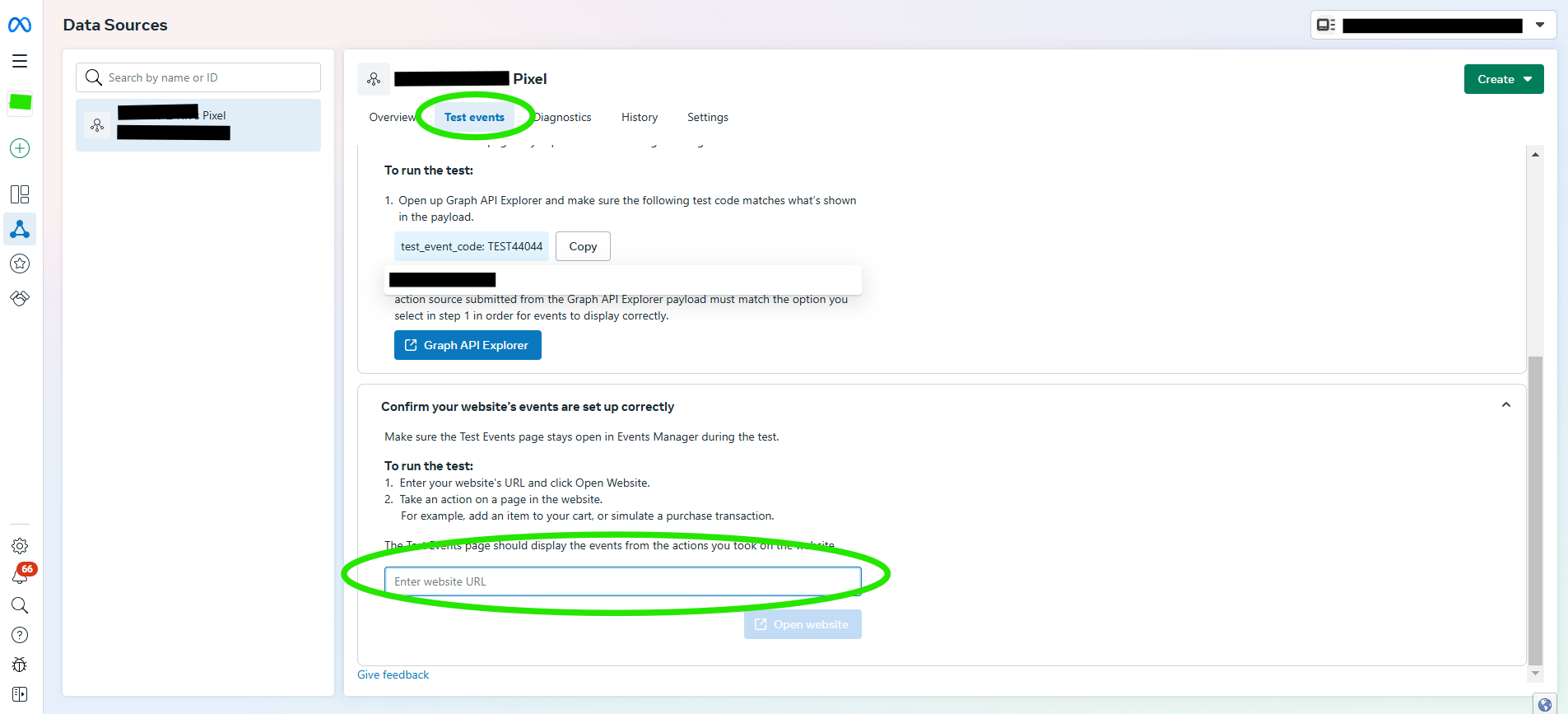
Open the "Test Events" tab
- Enter the URL of the website where you installed the pixel, then click Open Website.
Check that events are recorded
- After opening the website, return to Events Manager and look for PageView or other events you configured
Step 7: Check Meta Pixel Helper
Install Meta Pixel Helper
- Download Meta Pixel Helper for Chrome.
Check your website
- Visit the website where you installed the pixel.
- Click the extension icon in your browser and check that the pixel fires correctly.
Check for errors
- If the pixel works, you will see its ID and the events that fired, for example: PageView).
- If errors appear, check the Pixel ID and the tag settings in GTM.