 עברית
עברית
GTM lets you create and manage Google Analytics tags to track page views, button clicks, form submissions and other actions. It reduces the need to edit your website's code whenever you add or change tracking.
This guide walks through creating a Google Analytics tag in GTM: setting up Analytics, creating the tag, choosing triggers, testing and publishing. The aim is to collect reliable data to inform your website and marketing decisions.
Step 1: Set up Google Analytics
- Create a Google Analytics account:
- Visit Google Analytics and create an account if you do not have one.
- Create a property:
- In GA4, create a property and obtain its Measurement ID, which looks like this: G-XXXXXXX.
- Save the Measurement ID; you will need it later.
If you already have a Google Analytics account, follow these instructions to find the GA4 Measurement ID or the tracking ID referenced in Universal Analytics:
For GA4 (Google Analytics 4):
Sign in to Google Analytics:
- Visit Google Analytics and sign in with your Google account.
Select the property:
- On the left side of the screen, select the property you want to use.
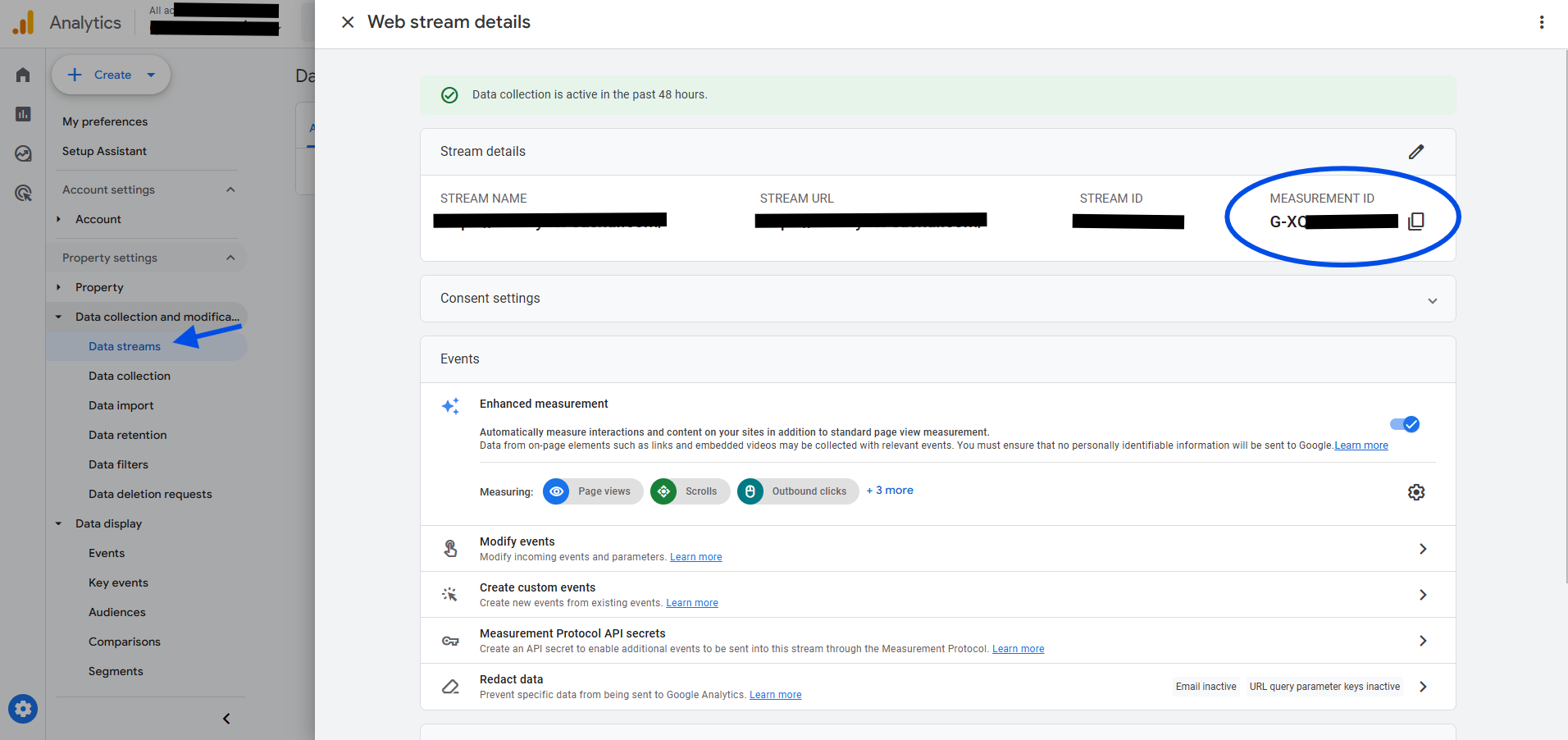
Open Data Streams:
- Click Admin (in the bottom-left corner).
- Under the Property, click Data Streams.
Find the Measurement ID:
- In Data Streams, select the stream for your website.
- The Measurement ID appears at the top of the page in this format: G-XXXXXXXXXX.
Step 2: Sign in to Google Tag Manager
Open your GTM container:
- Sign in to GTM and select the container where you want to install Google Analytics.
Step 3: Create a Google Analytics tag
- Click "Tags" in the sidebar:
- In the GTM menu, click Tags and select "New".
- Choose the tag type:
- In "Tag Configuration", select Google Analytics: GA4 Configuration.
- Enter the Measurement ID:
- Paste the Measurement ID from Google Analytics into the relevant field.
- Save the tag:
- Give the tag a clear name, such as "GA4 Configuration Tag".
Step 4: Add a trigger
- Click "Triggering":
- Add an All Pages trigger to fire the tag on every page.
- Save the changes:
- After adding the trigger, click "Save".
Step 5: Test the tag
- Preview mode:
- Click "Preview" in GTM to test the tag.
- Check that the tag works on your website using the developer console or Google Tag Assistant.
- Check Google Analytics:
- Open Google Analytics and check the Real-Time report to see whether traffic is detected.
Step 6: Publish the tag
- Click "Submit" in GTM:
- Complete the setup by publishing the changes.
- Name the version:
- Give the version a clear name, such as "GA4 Tag Added".